Topaz Video: where to start before you upscale anything
The naming first, because it trips people up. The app started as Video Enhance AI, then became Topaz Video AI, and the site now calls it plain Topaz Video. Every older tutorial still uses the previous names, and the download page has not moved.
My position from the first paragraph: Topaz does not repair a bad frame. It redraws a good one. If the camera smeared during a pan and a face is a grey blob, a diffusion model will invent a plausible face, and by the second second of playback you can see it. That kind of shot needs a reshoot or a different take.
So the first step never changes. Look at the source and answer three questions. What resolution is it. Is there motion blur. Is it interlaced. Interlaced footage goes through deinterlacing first, otherwise the model reads the comb lines as detail and amplifies them across the frame.
What version 1.7.0 changed
The release landed on August 11, 2026, with three things worth knowing: a plugin for Final Cut Pro, a live preview for stabilization, and Starlight Mini opening up to every licence, where it used to require Pro.
The classic models are still there: Proteus, Iris, Nyx, Rhea, Artemis, Gaia, Theia, Apollo. Chronos handles frame interpolation, and there are separate passes for SDR to HDR and for stabilization. That set earns its keep more than it looks. The diffusion models deliver the picture, while the older ones are faster and more predictable on clean material that needs no invention.
Starlight Precise 2.6: live footage and AI video
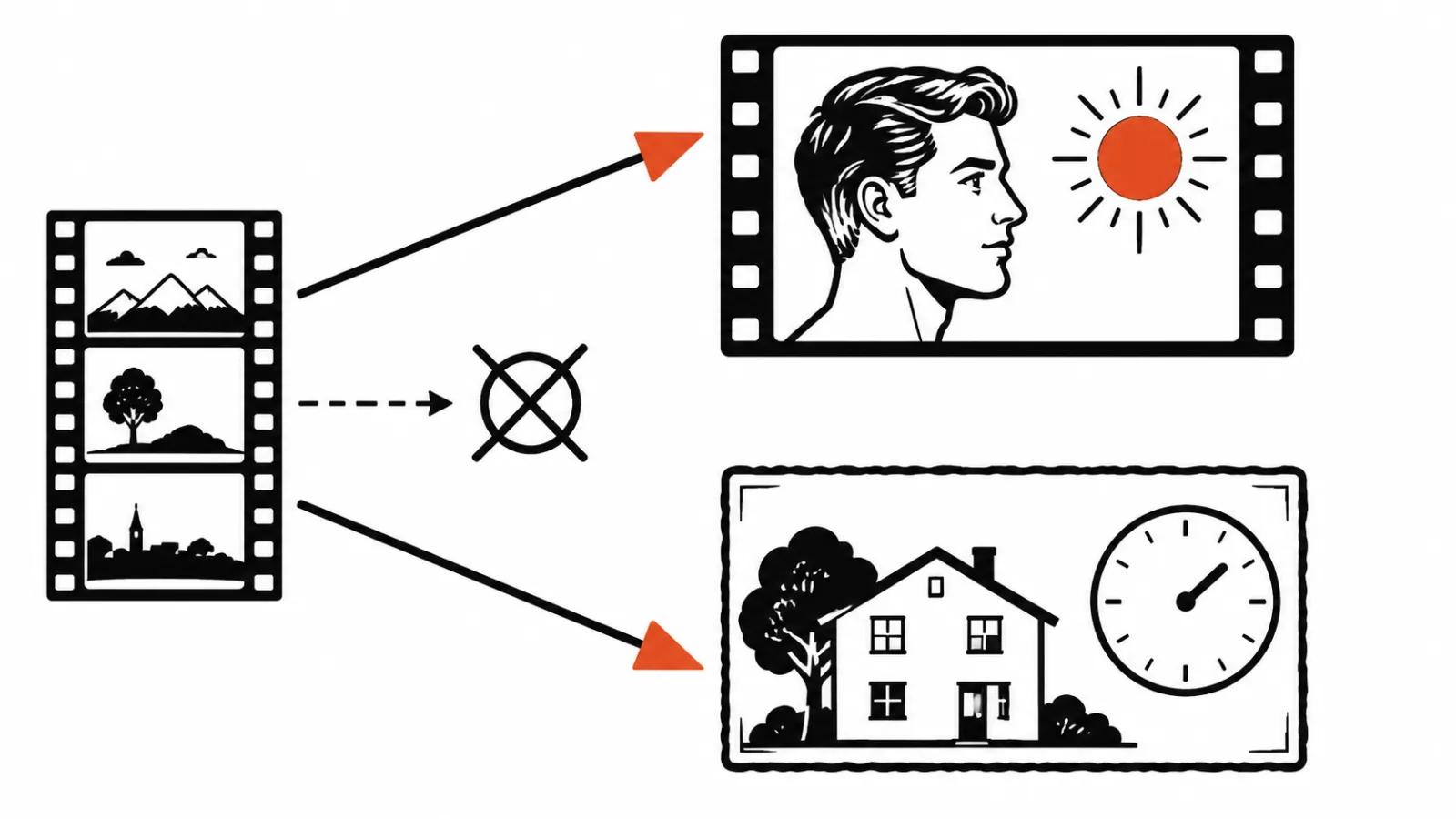
Starlight Precise 2.6 targets medium and high quality material: live action, generated video, restoration work. Input up to 4K, output up to 4K. It is tuned for faces and skin, for materials and for on-screen text, and that shows on close-ups.
Sharpness sits on a three-step slider. One is softer and more natural, three is the default and the hardest setting. The mistake I see most in other people's projects is three on faces: skin turns waxy, pores vanish and the person on screen reads as a mannequin. On portraits I would start at one and look at the result.
The other side matters too. Precise 2.6 removes the plastic look that AI video carries, provided the source is composed properly. Heavy motion blur defeats it, very poor sources and anything under 480p come out badly, and interlaced footage needs deinterlacing before it loads. Renders are slow, and that is the trade.
For local work: NVIDIA with 12 GB of VRAM and 32 GB of RAM, 16 GB of VRAM preferred. On a Mac, 16 GB of memory, 24 GB preferred.
Starlight Mini: old tapes and rough sources
Starlight Mini handles old and poor recordings at low and medium quality. Input up to 1920×1080, output up to 4K. It adds a slight haze and plasticizes faces less, so a family archive comes out softer and more human.
Since 1.7.0 Mini runs on every licence. The preview does not work with it, so exporting a couple of seconds is the only way to see the result before a full render. Small unreadable text can be read as texture and smeared across the frame.
Requirements are lighter than Precise: NVIDIA with 10 GB of VRAM, 16 GB preferred, and 32 GB of RAM. On a Mac, 36 GB.
Which model to pick
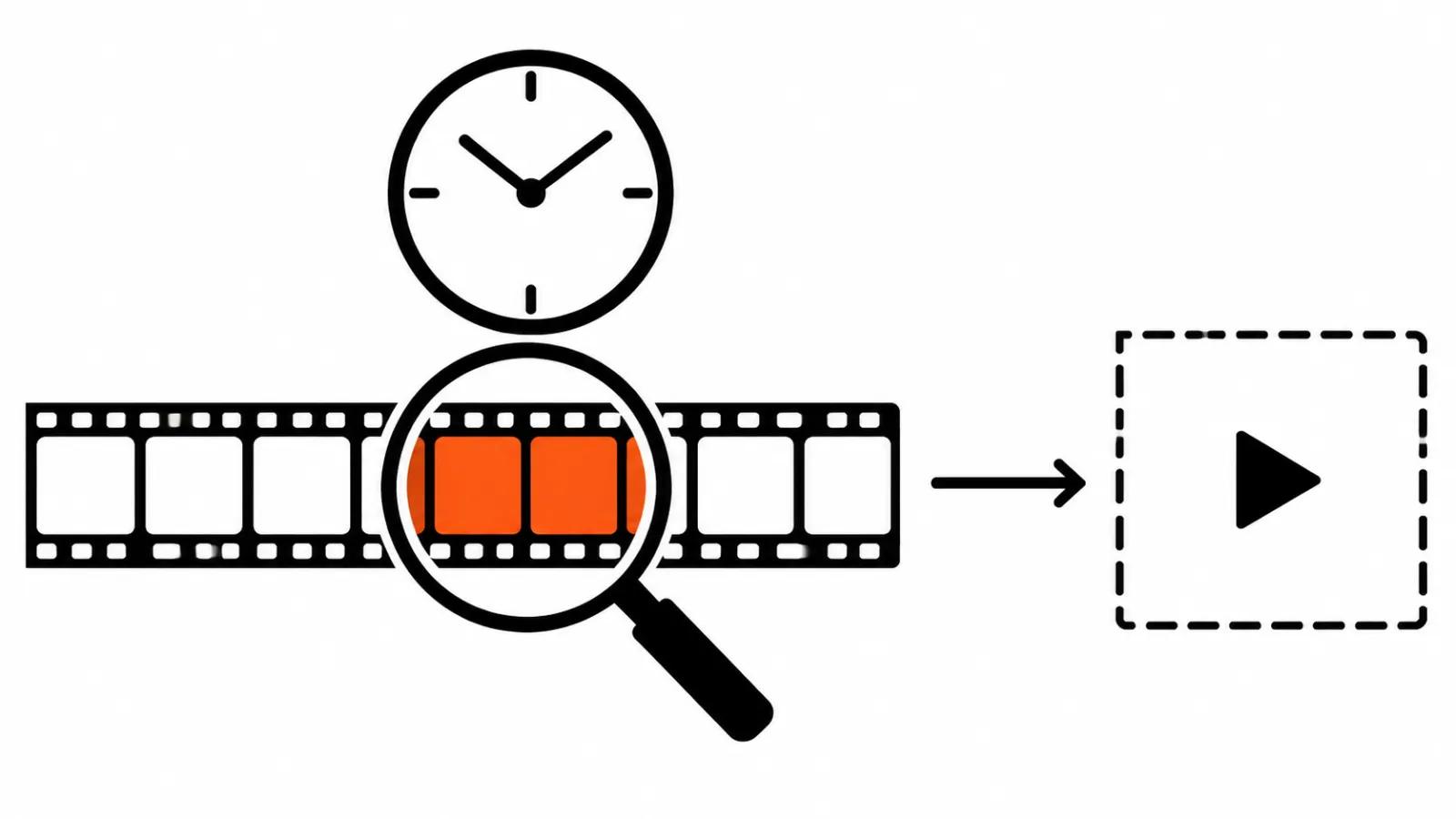
The table settles the choice in ten seconds. Anything shot decently in recent years goes through Precise 2.6. Anything pulled from an old archive or shot on a weak camera goes through Mini. Strong motion blur beats both of them.
| Source | Model | Input | Output | GPU |
|---|---|---|---|---|
| Live action at 1080p and 4K | Precise 2.6 | up to 4K | up to 4K | NVIDIA 12 GB, 16 GB preferred |
| Generated video with plastic skin | Precise 2.6 | up to 4K | up to 4K | NVIDIA 12 GB, 16 GB preferred |
| Old archive at 480p and 1080p | Starlight Mini | up to 1920×1080 | up to 4K | NVIDIA 10 GB, 16 GB preferred |
| Heavy motion blur | neither | doubtful | doubtful | shoot another take |
Five steps that save render hours
Step three pays for itself. A full render of an hour of footage on a modest GPU runs overnight, and waxy faces discovered at the end hurt. Three seconds with a face and three seconds with movement tell you everything you need before committing.
- Judge the source: resolution, motion blur, interlacing.
- Pick the model from the table above.
- Export three to five seconds as a test, never the whole file.
- Set sharpness to 1 when faces are in frame and compare it with 3 on the same fragment.
- Run the full render locally or in the cloud.
What Topaz Video costs
Topaz bills in US dollars. The numbers below are the list prices as of November 2.
Topaz Video includes 25 cloud credits a month, and the Starlight Sharp, HQ and Fast models run in the cloud only. Studio adds 300 cloud video credits. The browser tier normally costs more and currently sits at USD 19 a month.
The licence matters more than the price. The standard tier allows commercial use for organisations with annual revenue under 1 million USD. Anything larger needs Pro.
| Plan | Monthly | Per year |
|---|---|---|
| Topaz Video, billed monthly | USD 59 a month | USD 708 |
| Topaz Video, annual commitment | USD 39 a month, billed monthly | USD 299 paid upfront |
| Topaz Video Pro | USD 74 a month | USD 699 |
| Topaz Studio, all apps | USD 69 a month | USD 399 |
| Topaz for Web Video | USD 19 a month on promo | USD 199 on promo |
My take: sharpness 1 and a three-second test
I would keep Topaz as the final step of a pipeline. It makes a poor rescue service: shoot or generate first, select the takes, then upscale and clean. On a decent source, Precise 2.6 at sharpness 1 returns a natural image that sits comfortably next to native 4K.
For the wider field, our guide to AI video upscaling covers open models and the cheaper alternatives, and a separate piece looks at upscaling to 4K with an open model. Where volume matters, our AI video production service handles the whole batch, and upscaling comes last before publishing. When a corporate video needs real people and real voices, filming stays the honest choice: frame interpolation will not recover an intonation.